Exploring the four panes
Now that you have an R Script open, you’ll see that the RStudio window is divided into four panes. Click through each tab below to explore what it does.
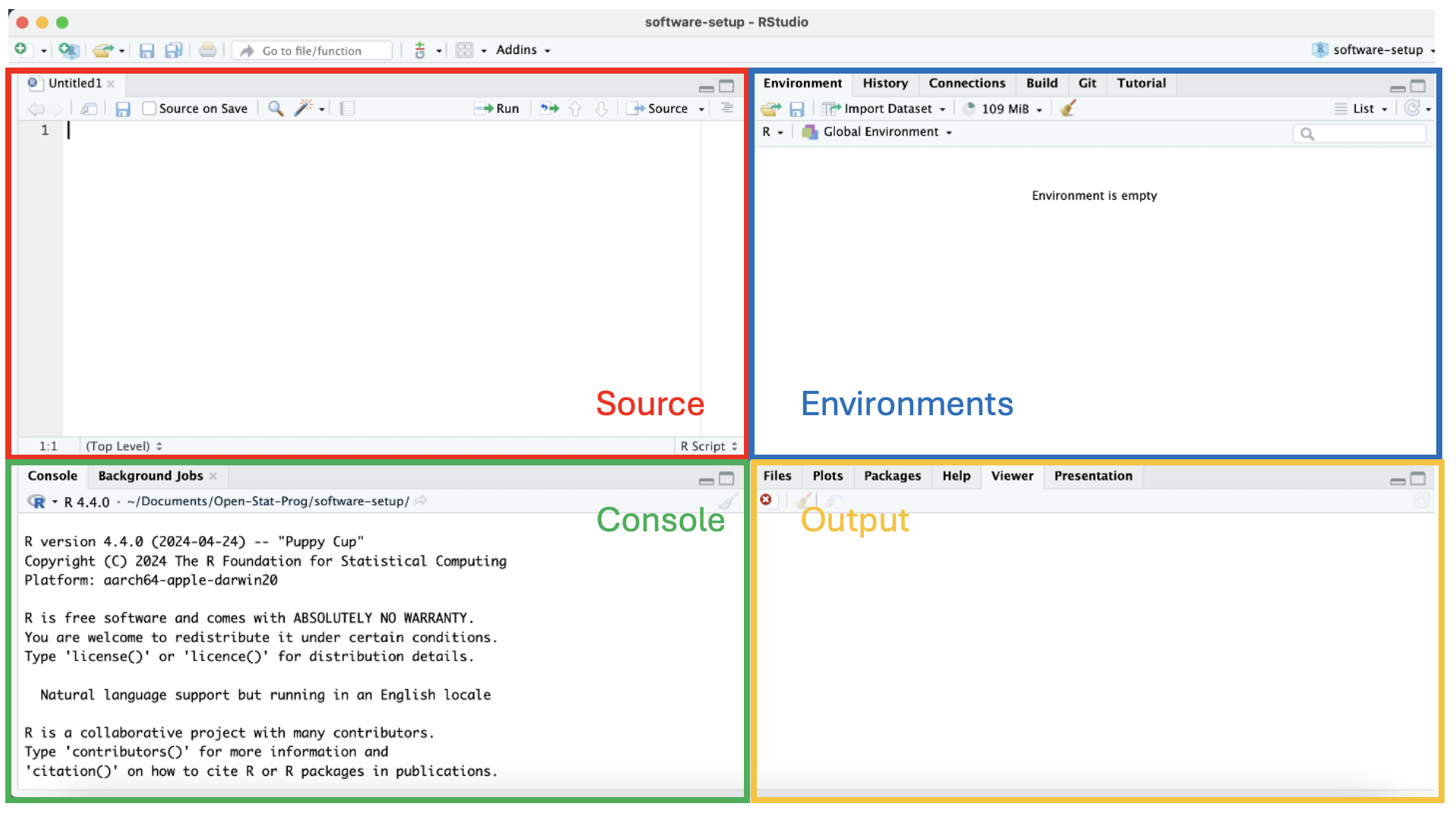
This is where you edit and save your R Scripts or other computational documents. The code written here does not run automatically. You have to explicitly send it to the Console to be run.
This is where your code actually runs. If you run a piece of code from the Source pane, the result or output of that code appears here.
Here you find all the temporary R objects you create during your R session, for example any datasets you’ve loaded, which you can open here for further inspection.
Here you find plots, tables, or HTML outputs of executed code. You can also browse files saved to your disk, install packages, or access help files from this pane.
A useful source is the Get Started page on Posit.
You’ve just written and run data <- read.csv("mydata.csv") in your R Script. Which pane would you look at to preview the contents of data?
The Environment pane. This is where R keeps track of the objects (like data) that currently exist in your session, and lets you click to preview them. The Console pane would only show you output if you had explicitly printed data there.