Changing settings in RStudio
If you’re just starting out with R and RStudio, there are a few settings you might want to change to make things easier and more comfortable. You can find most of these under Tools → Global Options in the RStudio menu.
Appearance
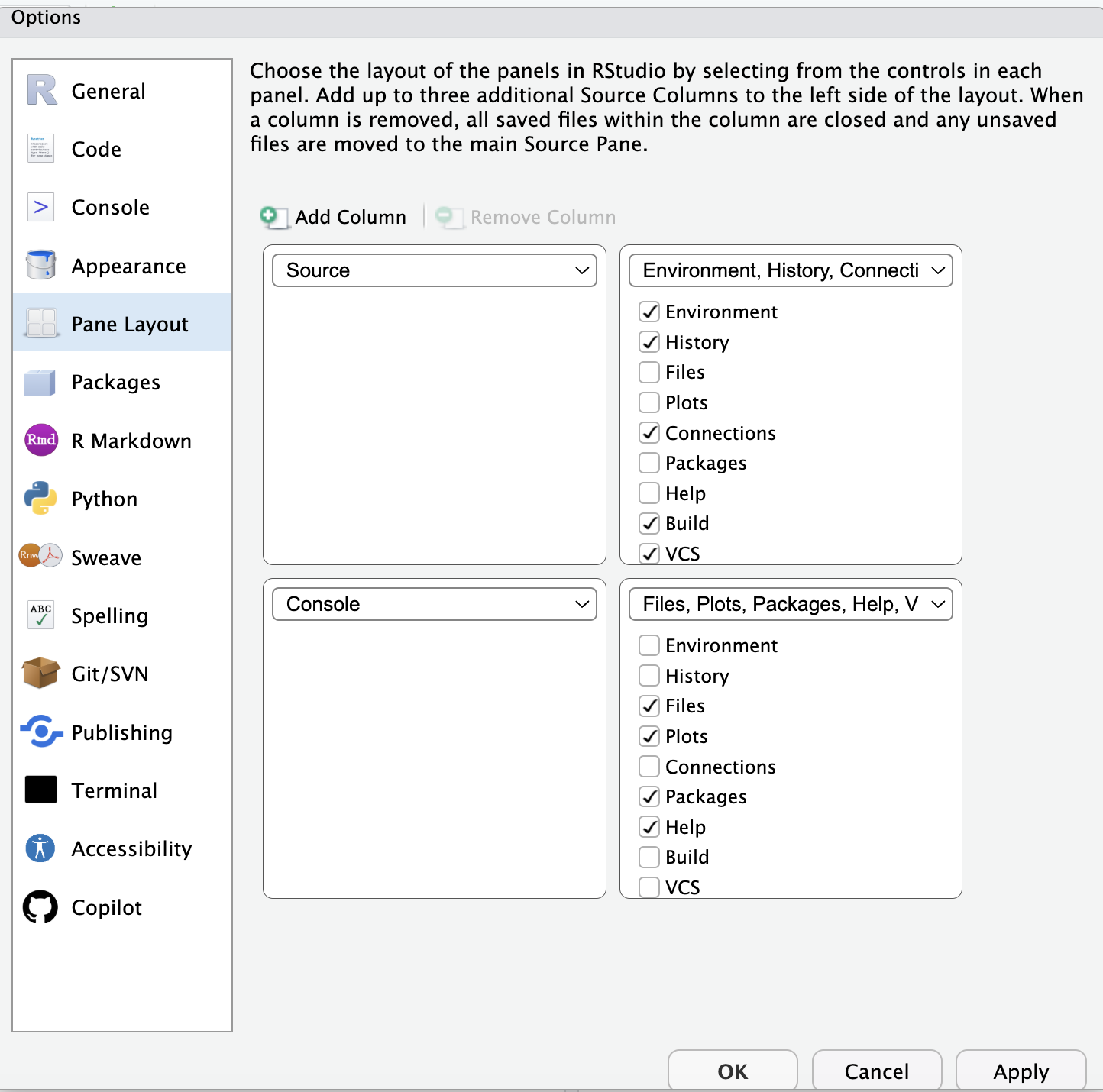
You can adjust the appearance of RStudio. Two aspects are particularly useful to further investigate.
 .
.
The first one is the pane layout. Depending on the screen you are using, it might work better for you to change the layout of the four separate panes. On a large monitor, it might for example work better to have the Source and Console next to each other to allow larger pieces of code and output to be visible.
You can find this under Tools → Global Options → Pane Layout.
 .
.
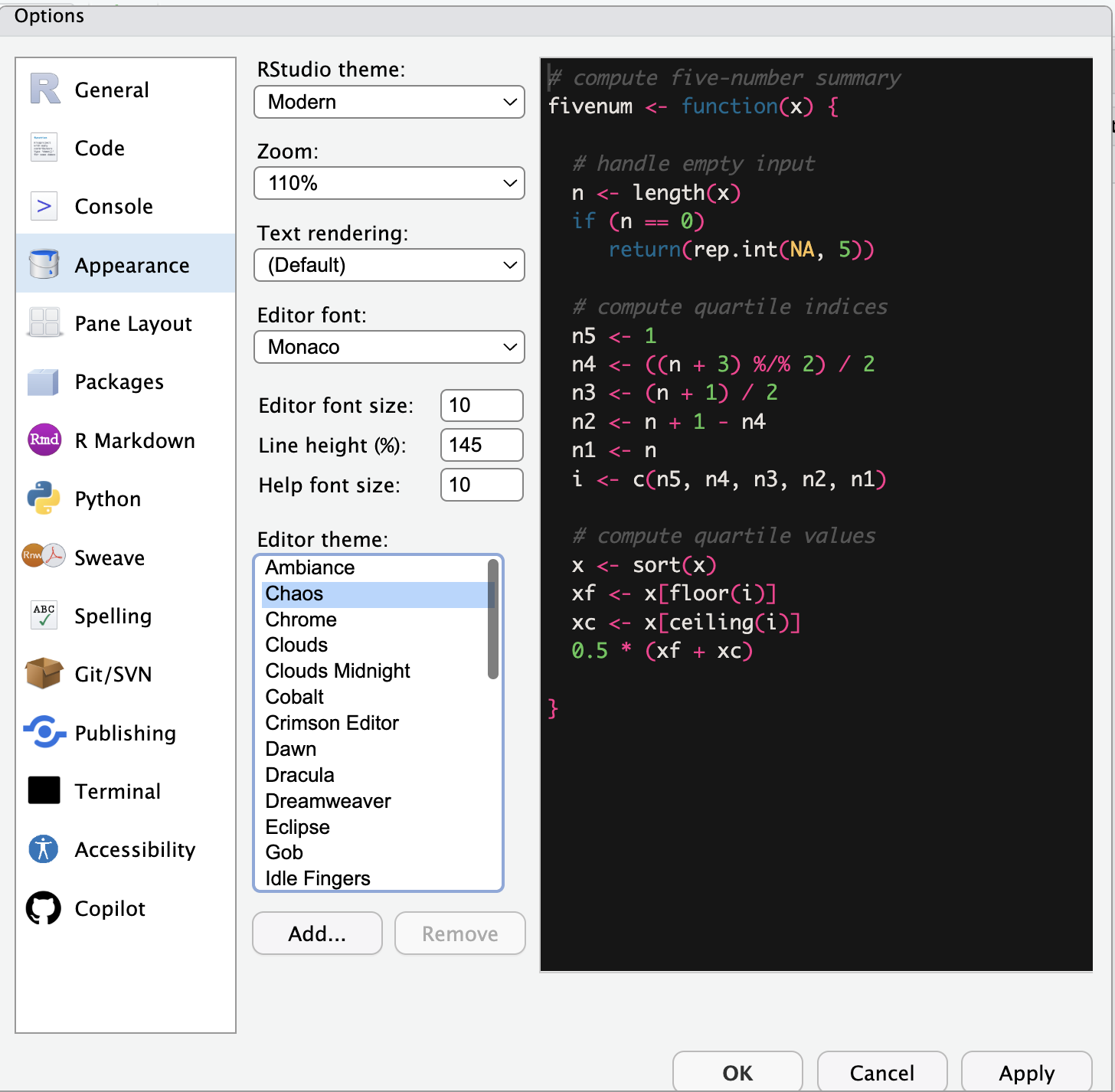
RStudio has many different themes that you can choose from to change the appearance. You can for example choose to pick a theme with a dark background, or with more or less bright text colors. Play around with it and choose whatever is easy on the eyes for you!
Tools → Global Options → Appearance.
Saving your work automatically
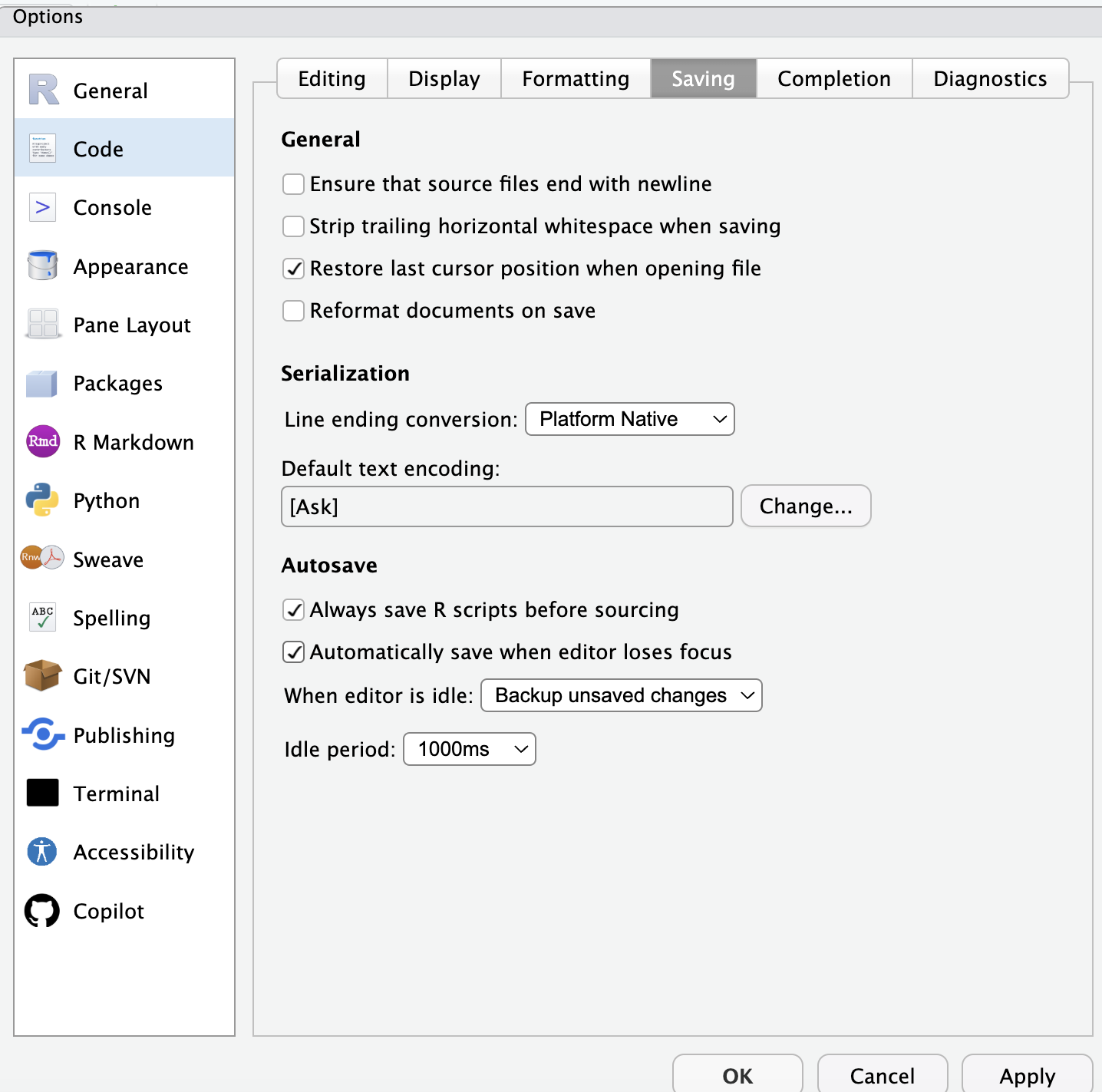
By turning on “Auto-save”, RStudio will automatically save your script files while you are working. This helps to avoid losing your work if you forget to click save or something else unexpectedly happens.
 .
.
You can find this under Tools → Global Options → Code → Saving. Here select “Automatically save when editor loses focus”.
Start with a clean slate always
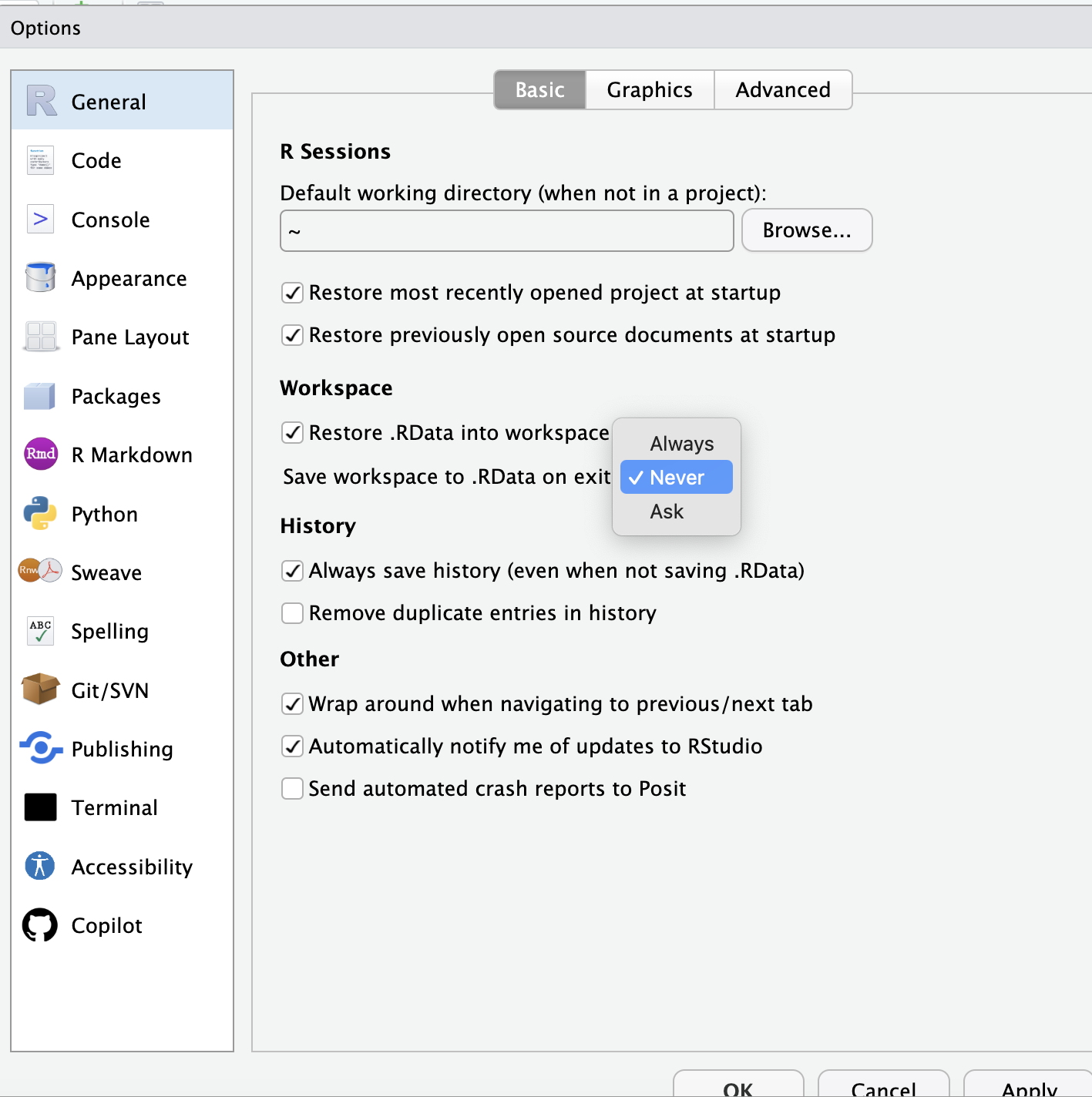
When you quit R, you get asked if you want to save the workspace to an .Rdata file. If you do this and you launch RStudio again, it allows you to continue where you left. We recommend to not save your workspace to an .Rdata file. This helps a lot with reproducibility of your work on the long term and helps you to ensure that your scripts are complete and self-contained.
 .
.
You can permanently turn off this setting by going to Tools → Global Options → Save workspace to .Rdata on exit, and change this into “Never”.
Set your default working directory
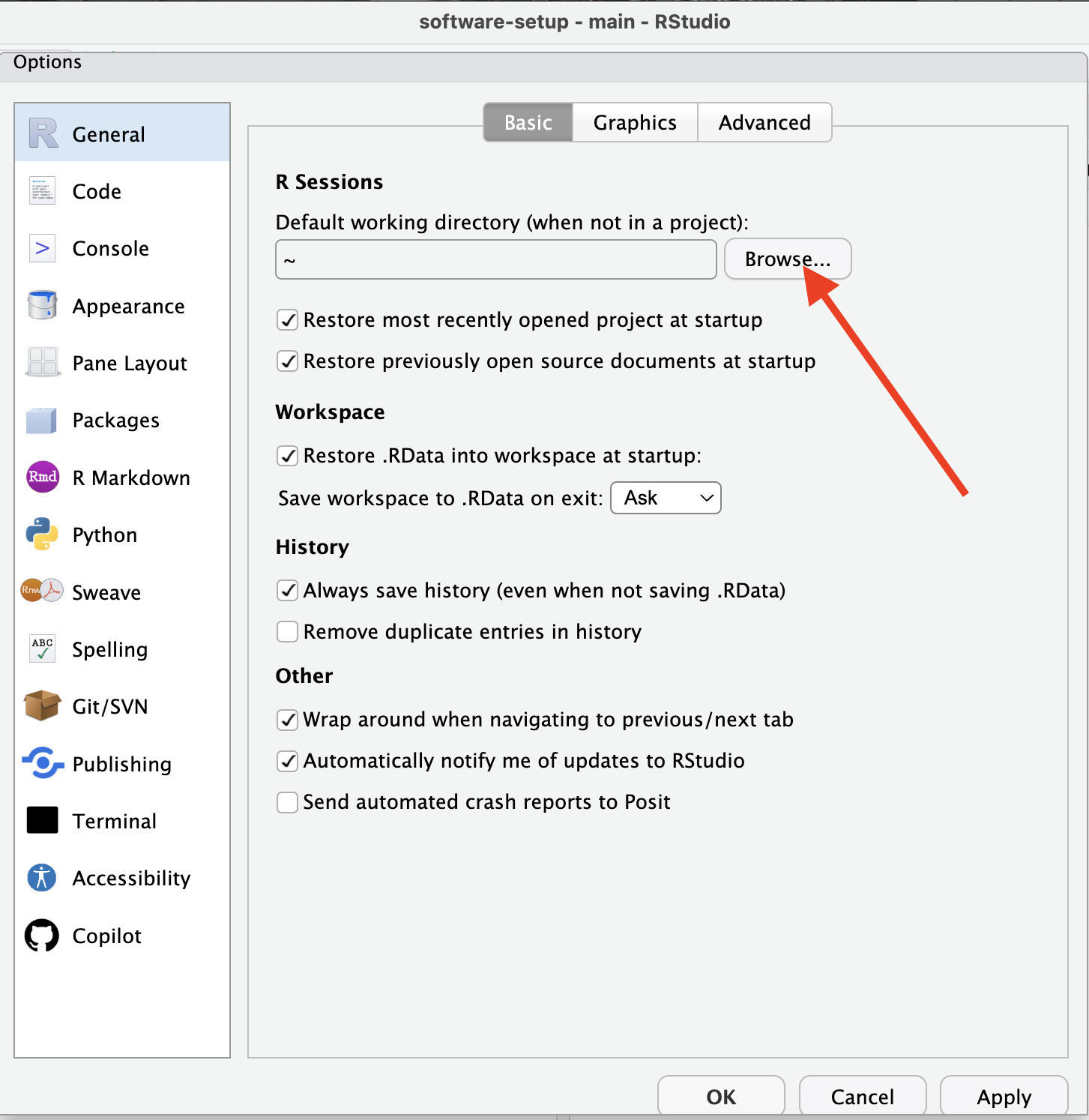
You can choose the folder where RStudio should start by default. This is called your working directory. This is the folder where your files will be saved (unless you specify a different folder explicitly). By creating a separate folder specifically for your R Scripts and other related documents, you can easily find them later.
For example, you can create a folder called RProjects and tell RStudtio to always start here.
 .
.
To can change the default working directory, you first create a folder on your computer specifically for your R documents, with a name and location you can easily find and remember. Next, you go to Tools → Global Options → General. By clicking on the “Browse” button here, you can select the folder you just created. Now, all R Scripts or other output that is created will be automatically stored here!